
Uncategorized
How to Install IPTV on an Android Phone in 5 Minutes (Easy 2026 Guide)
How to Install IPTV on an Android Phone in 5 Minutes (Easy 2026 Guide)
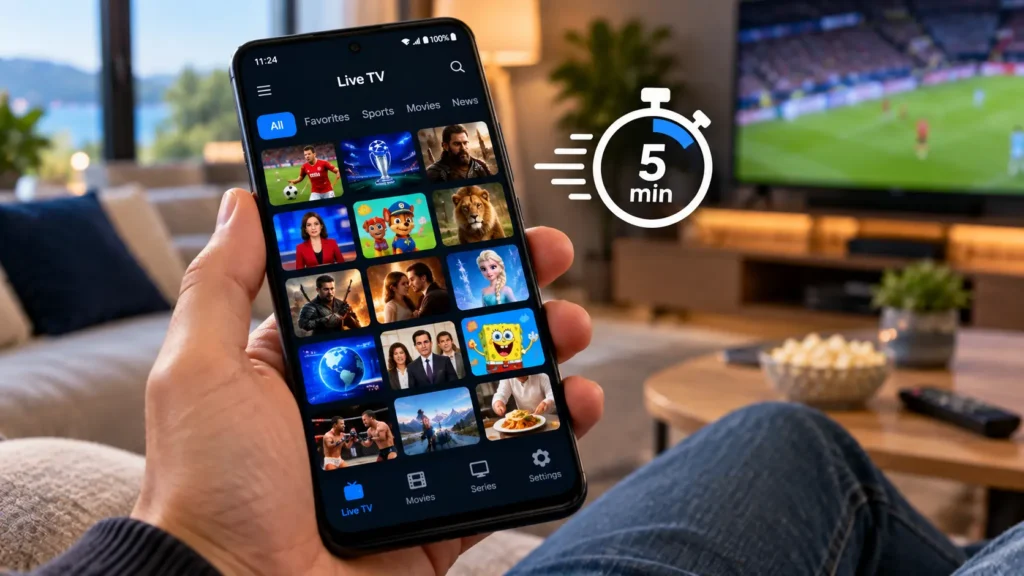
Installing IPTV on Android phone is the fastest way to start watching live TV, movies and series. It takes about 5 minutes, works on almost any Android device, and is also the best way to test your subscription before setting up your TV.
In this guide, you will learn which apps to use, how to add your login details step by step, and how to fix the most common problems. New to IPTV? Read What Is IPTV? first.
What You Need to Watch IPTV on Android Phone
1. An Active IPTV Subscription
Your provider sends you an M3U playlist link or an Xtream Codes login (server URL, username and password). You can pick a plan on our IPTV Plans page.
2. A Stable Internet Connection
Allow around 8 Mbps for HD and 25 Mbps or more for 4K. Check your speed for free on Speedtest.net. Wi-Fi is best, but 4G and 5G also work.
3. An IPTV Player from Google Play
Android phones use player apps from the Google Play Store. There is no special Marinios app. You simply enter your login details into a compatible player.
Best IPTV Apps for Android Phones
VLC for Android
VLC for Android is free, safe and opens M3U links in seconds. It’s perfect for a quick test, but it has no TV guide.
IPTV Smarters Pro
A popular player that supports Xtream Codes and M3U links. It shows live TV, movies and series in separate sections, with a TV guide and catch-up.
GSE Smart IPTV
A powerful player with M3U and Xtream support, favorites, parental controls and a TV guide.
Safety tip: Always install apps from Google Play. Avoid unknown APK files from random websites, as they can contain malware.
How to Install IPTV on Android Phone with VLC (Fastest Method)
Step 1: Install VLC
Open Google Play, search for VLC for Android and tap Install.
Step 2: Open the Stream Option
Open VLC, tap the More tab, then tap New stream (called Stream in some versions).
Step 3: Paste Your M3U Link
Paste the M3U link you received and tap the arrow or Go.
Step 4: Pick a Channel
Your channel list will load. Tap any channel to start watching.
How to Install IPTV on Android Phone with an IPTV Player
Method 1: Using Xtream Codes Login
Step 1: Install the Player
Download IPTV Smarters Pro or GSE Smart IPTV from Google Play.
Step 2: Choose Xtream Codes Login
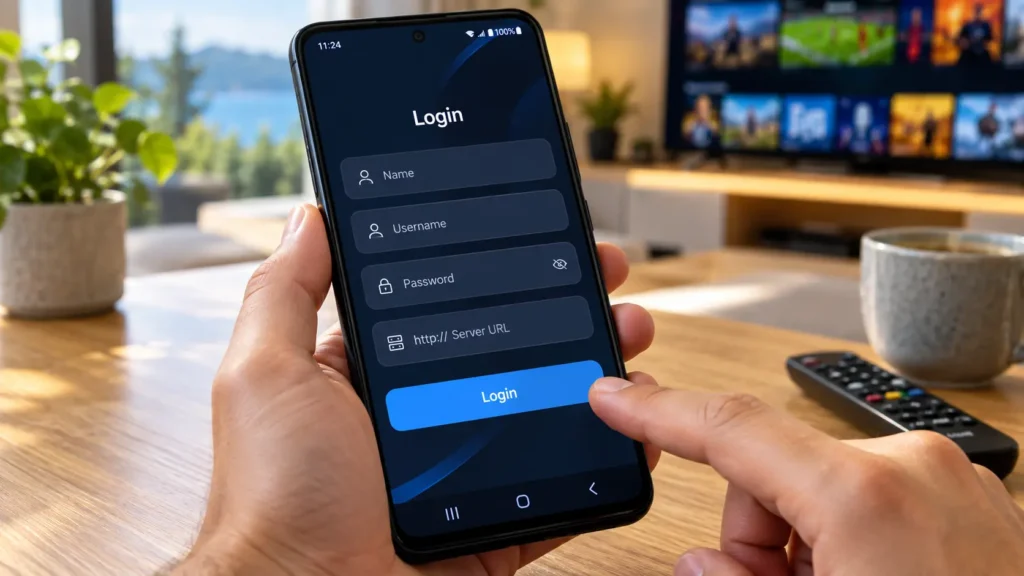
Open the app, accept the terms, and choose Login with Xtream Codes API.
Step 3: Enter Your Details
Type any name, then enter your username, password and server URL. Check for typos, capital letters and extra spaces.
Step 4: Log In
Tap Add User or Login. Wait a few moments while your channels and TV guide load.
Step 5: Start Watching
Open Live TV, Movies or Series and enjoy your content.
Method 2: Using an M3U Playlist Link
Step 1: Choose the Playlist Option
In your player, tap Load Your Playlist or File/URL or Add Remote Playlist.
Step 2: Add Your Link
Give the playlist a name, select M3U URL, paste your link and save.
Step 3: Add the TV Guide (Optional)
If you received an EPG link, add it in the settings to see what’s on now and next.
How to Watch IPTV from Your Android Phone on TV
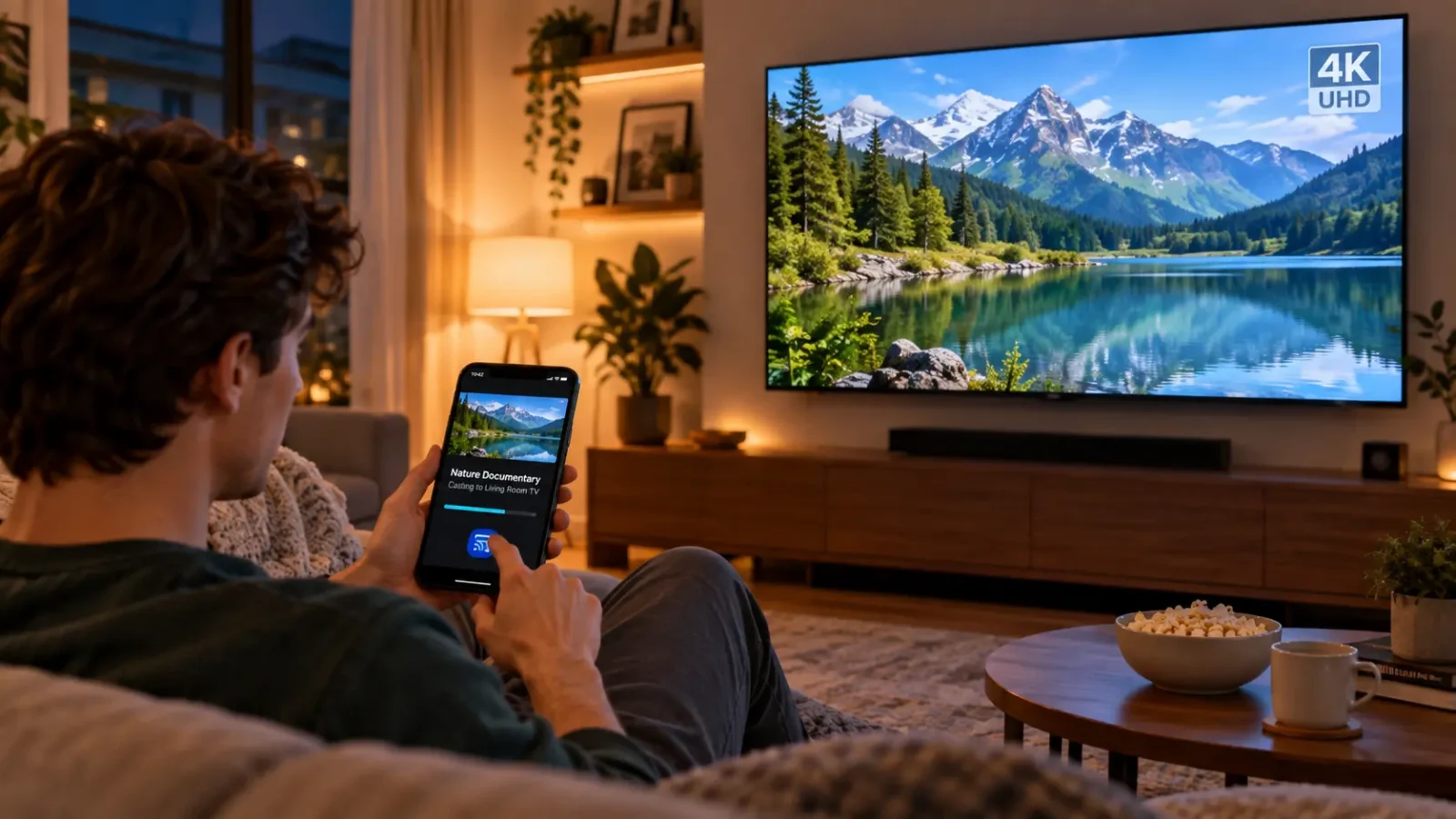
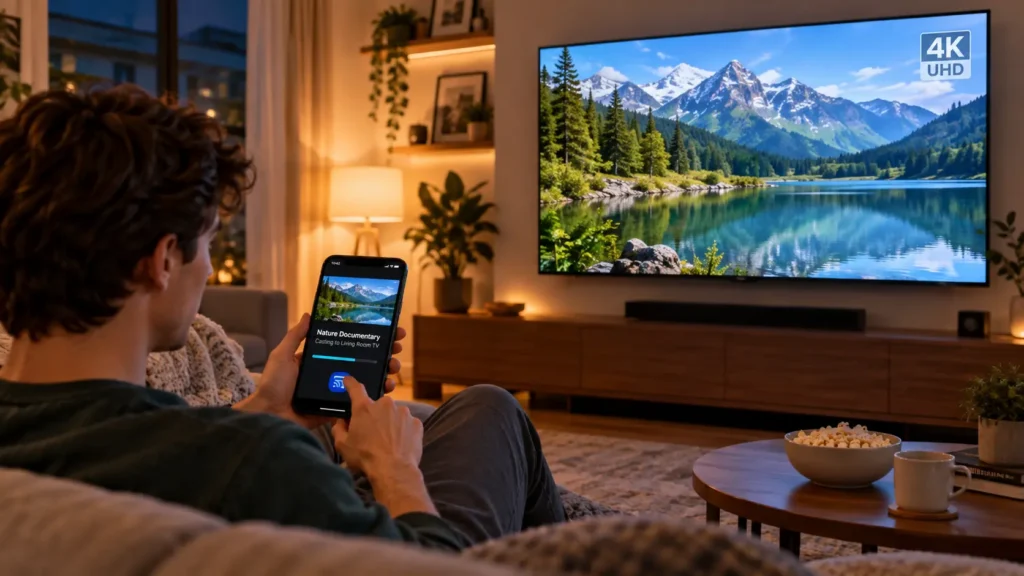
You can cast your phone to a TV with Chromecast or a TV that has Google Cast built in. Open Quick Settings, tap Cast or Screen Cast, and choose your TV. Google explains how here: Cast your Android screen.
For the best picture, install the player directly on your TV. Follow our Android TV setup guide, Firestick setup guide or Smart TV setup guide.
How to Fix Common IPTV Problems on Android Phone
Streams Keep Buffering
Move closer to your router or use the 5 GHz Wi-Fi band. Close background apps that use the internet. In your player settings, try a bigger buffer size.
Login Failed or Playlist Won’t Load
Re-type your details carefully, as they are case-sensitive. Make sure your subscription is active.
App Crashes or Freezes
Go to Settings → Apps → [your player] → Storage and tap Clear Cache. Then reopen the app.
“Too Many Connections” Error
Each device streaming at the same time counts as one connection. Stop playback on another device or choose a plan with more connections.
Only One Channel Doesn’t Work
This is usually a source issue. Send the channel name to our customer support team and we will check it.
Tips for the Best IPTV Experience on Android
- Keep your player app and Android system updated.
- Turn off Battery Saver while streaming, as it can slow playback.
- Add your top channels to Favorites for quick access.
- Use Wi-Fi to save mobile data.
- Want to watch on other devices? See our guides for iPhone and iPad and PC and Mac.
Frequently Asked Questions
Does IPTV work on all Android phones?
It works on almost all Android phones and tablets from the last several years, as long as you can install a player from Google Play.
Can I use the same subscription on my phone and TV?
Yes. The same login works on all your devices. Only the number of connections in your plan can stream at the same moment.
Does IPTV on Android phone use a lot of mobile data?
Yes. An HD stream can use a few gigabytes per hour. Use Wi-Fi when possible, or lower the quality in the player settings.
Is there an official Marinios IPTV app?
No. You use a trusted third-party player and enter the login details we send you.
Find more answers on our IPTV FAQ page.
Start Watching IPTV on Android Phone Today
Now you know how to install IPTV on Android phone in just 5 minutes. Install a player, add your login, and your favorite live TV, movies and series are ready wherever you go.
Need a subscription? Choose your Marinios IPTV plan and our team will help you set it up on WhatsApp.
One comment