
Uncategorized
How to Set Up IPTV on PC and Mac in 5 Easy Steps (2026 Guide)
How to Set Up IPTV on PC and Mac in 5 Easy Steps (2026 Guide)
Setting up IPTV on PC and Mac is one of the easiest ways to watch live TV, movies and series on a bigger screen than your phone. You don’t need a TV box or special hardware. A computer, an internet connection and a free player app are enough.
In this guide, you will learn which apps to use, how to add your subscription step by step on Windows and macOS, and how to fix the most common problems. If you are new to IPTV, start with our simple guide: What Is IPTV?
What You Need to Watch IPTV on PC and Mac
Before you start, make sure you have these three things ready.
1. An Active IPTV Subscription
You need login details from your provider. Usually this is an M3U playlist link or an Xtream Codes login (server URL, username and password). You can choose a plan that fits your home on our IPTV Plans page.
2. A Stable Internet Connection
Allow around 8 Mbps for each HD stream and 25 Mbps or more for each 4K stream. You can check your speed for free on Speedtest.net. A stable connection matters more than a high top speed.
3. An IPTV Player App
IPTV works through a player app. There is no special app to buy. The next section shows the best free options for Windows and Mac.
Best IPTV Player Apps for Windows and Mac
VLC Media Player (Windows and Mac)
VLC Media Player is free, safe and works on almost every computer. It plays M3U playlists easily. The downside: it has no TV guide (EPG), so it’s best for quick testing.
MyIPTV Player (Windows)
MyIPTV Player is a free app you can find by searching its name in the Microsoft Store. It supports M3U playlists and a TV guide, so it feels more like a real TV experience.
IPTVnator (Windows and Mac)
IPTVnator is a free, open-source player for Windows, macOS and Linux. It supports both M3U links and Xtream Codes logins, plus a TV guide.
How to Set Up IPTV on a Windows PC
Method 1: Using VLC Media Player
Step 1: Install VLC
Download VLC from the official VideoLAN website and install it.
Step 2: Open Network Stream
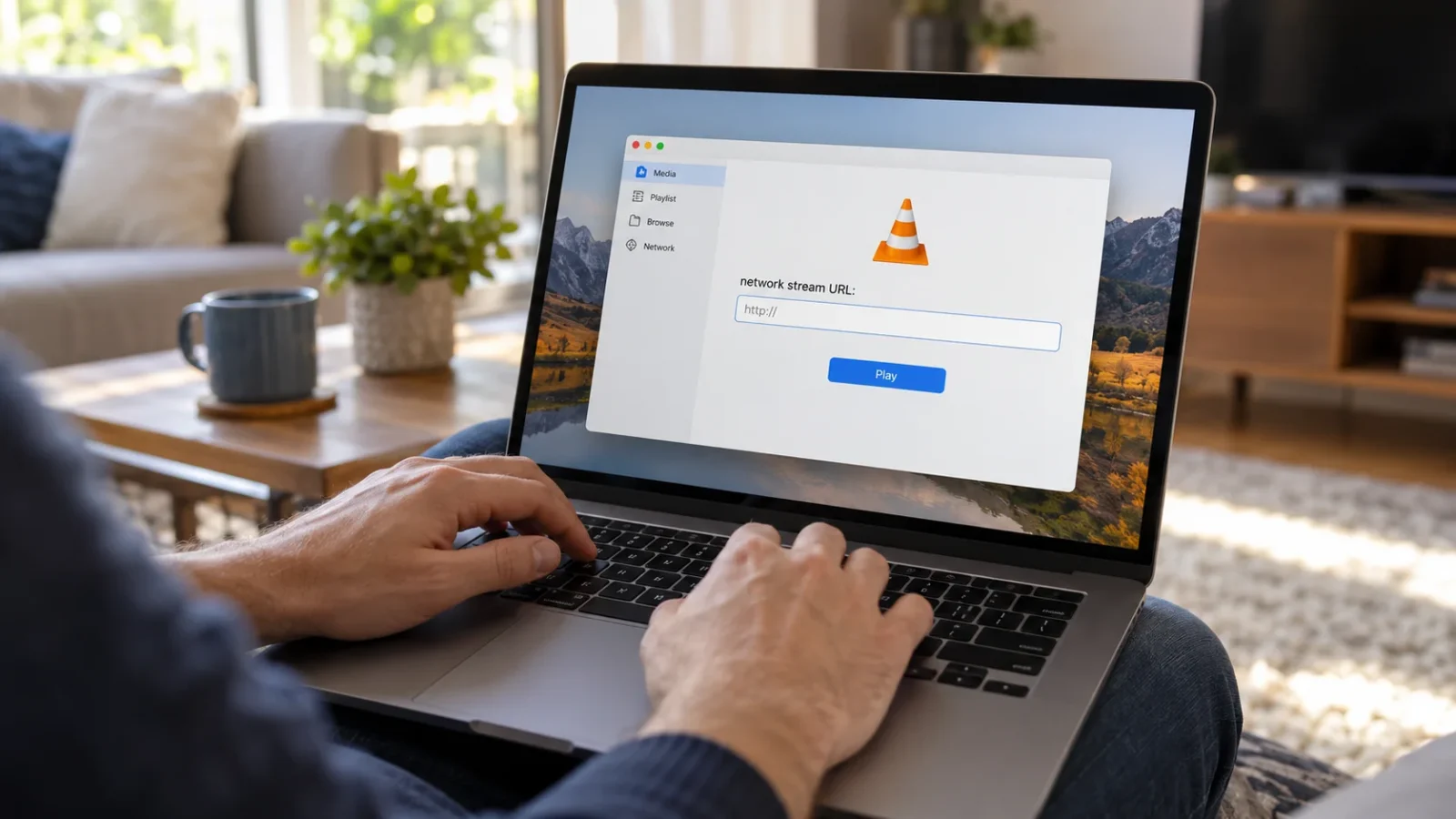
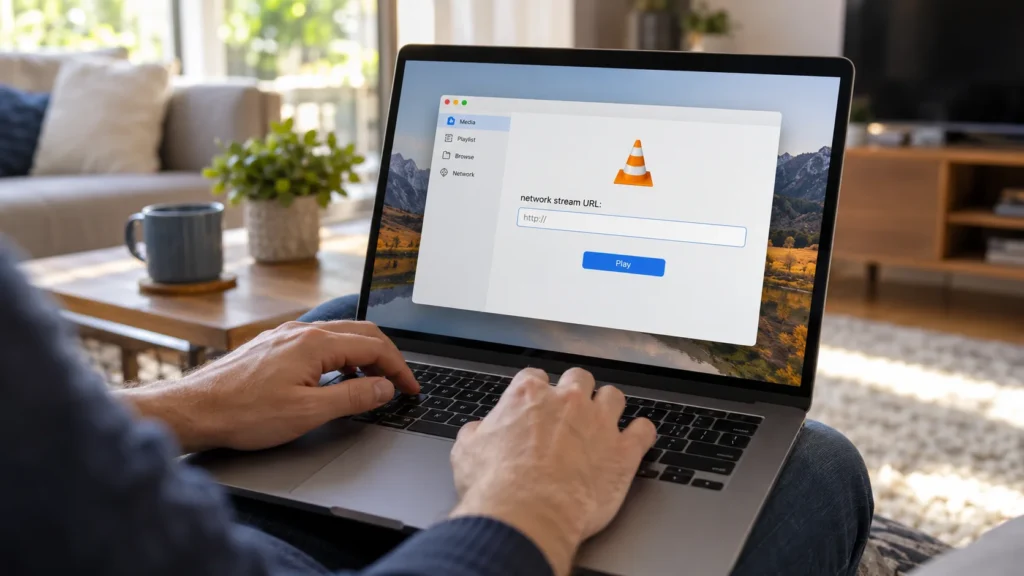
Open VLC, click Media, then Open Network Stream (or press Ctrl + N).
Step 3: Paste Your M3U Link
Paste the M3U playlist link you received from your provider, then click Play.
Step 4: Browse Your Channels
Press Ctrl + L to open the playlist and see all your channels. Double-click any channel to watch it.
Method 2: Using MyIPTV Player
Step 1: Install the App
Open the Microsoft Store, search for MyIPTV Player and click Get.
Step 2: Add Your Playlist
Open Settings, choose the option to add a new playlist, give it a name and paste your M3U link.
Step 3: Add the TV Guide (EPG)
If your provider gave you an EPG link, add it in the same settings area so you can see what’s on now and next.
Step 4: Select Your Playlist and Watch
Choose your playlist, go back to the Channels screen and start watching.
How to Set Up IPTV on a Mac
Method 1: Using VLC on macOS
Step 1: Install VLC for Mac
Download the Mac version from videolan.org and drag it into your Applications folder.
Step 2: Open Your Playlist
Open VLC, click File, then Open Network (or press Cmd + N). Paste your M3U link and click Open.
Step 3: View Channels
Click Window, then Playlist to see your full channel list.
Method 2: Using IPTVnator on macOS
Step 1: Download IPTVnator
Download the Mac version from the IPTVnator GitHub page.
Step 2: Allow the App to Open
If macOS blocks the app, go to System Settings → Privacy & Security and click Open Anyway. Apple explains this here: Open a Mac app from an unknown developer.
Step 3: Add Your Subscription
Click Add playlist and choose Xtream Code (enter server URL, username and password) or URL (paste your M3U link).
Step 4: Start Watching
Your channels, movies and series will load. Pick a channel and enjoy IPTV on PC and Mac with a full TV guide.
How to Fix Common IPTV Problems on PC and Mac
Channels Keep Buffering
Use a wired Ethernet cable if possible, or connect to the 5 GHz Wi-Fi band. Close downloads and other streams running on your network. In VLC, you can raise the network caching value under Preferences → Input/Codecs.
Channel List Won’t Load
Check that you copied the full link with no extra spaces. Make sure your subscription is active and you are not using more devices than your plan allows.
TV Guide (EPG) Is Empty
Refresh the EPG in your player settings and wait a few minutes. Remember that VLC does not support a TV guide, so use MyIPTV Player or IPTVnator for that.
One Channel Doesn’t Work but Others Do
This is usually a source issue. Report the channel name to our customer support team and we will check it.
Tips for the Best IPTV Experience on Your Computer
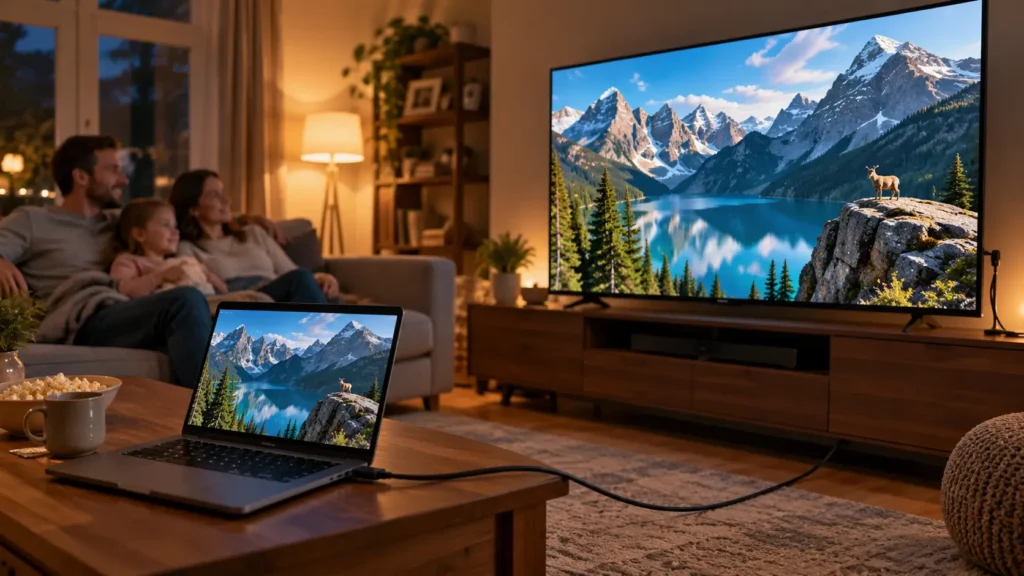
- Connect your laptop to your TV with an HDMI cable for a big-screen experience.
- Keep your player app updated for better stability.
- Use full-screen mode for the best picture.
- Remember that each device counts as one connection while it’s streaming.
Want to watch on your TV too? Follow our Firestick setup guide or Smart TV setup guide. You can also see every supported device on our Compatible Devices page.
Frequently Asked Questions
Can I use the same subscription on my PC and my TV?
Yes. You can install the player on many devices, but only the number of connections in your plan can stream at the same time.
Is VLC enough for IPTV on PC and Mac?
VLC is great for testing and simple viewing. For a TV guide, favorites and catch-up, a dedicated IPTV player like IPTVnator is better.
Do I need a powerful computer?
No. Most computers from the last few years can play HD streams easily. For 4K, a newer computer and a fast connection work best.
For more answers, visit our full IPTV FAQ.
Start Watching IPTV on PC and Mac Today
Now you know how to set up IPTV on PC and Mac in just a few minutes. Pick a player, add your login details and start watching live TV, movies and series on your computer.
Don’t have a subscription yet? Choose your Marinios IPTV plan and our team will help you set it up step by step on WhatsApp.
One comment