
Uncategorized
How to Add the EPG (TV Guide) to Your IPTV Player
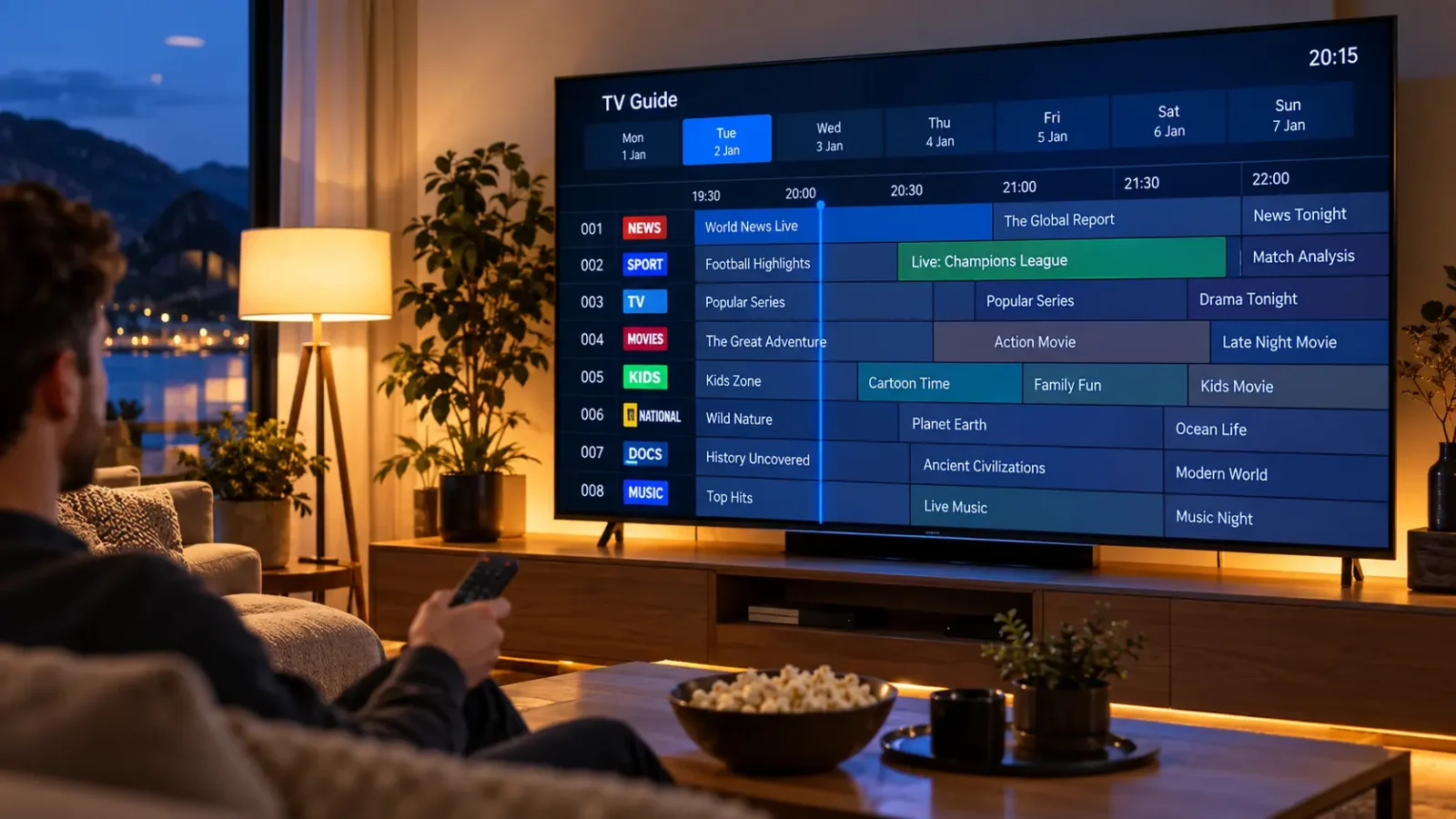
How to Add the EPG (TV Guide) to Your IPTV Player
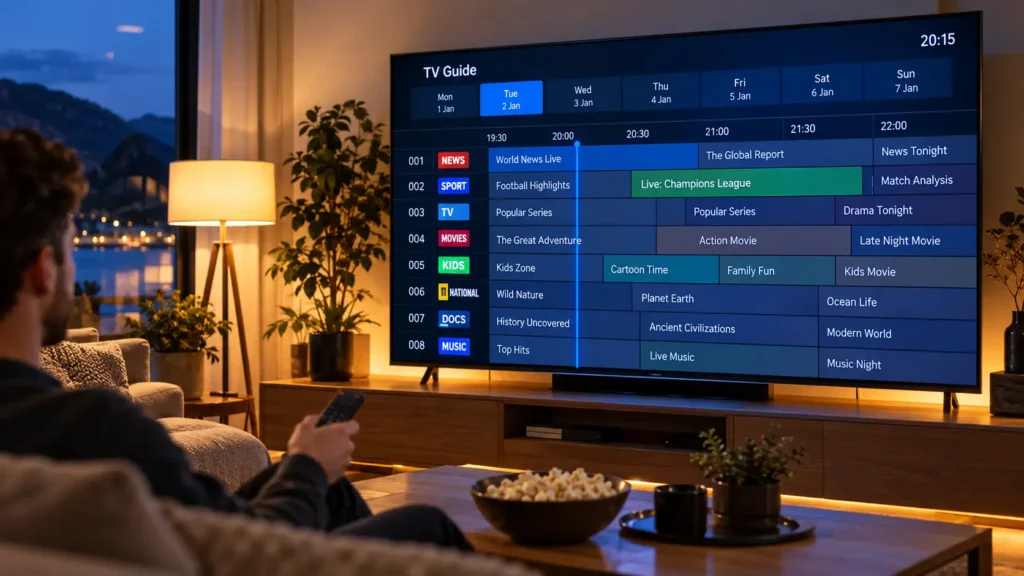
An IPTV channel list without a TV guide is like a TV without a remote: you can watch, but you never know what’s on. The good news is that it’s easy to add EPG to IPTV player apps, and it only takes a few minutes.
In this guide, you will learn what EPG is, where to find your EPG link, how to add it in the most popular players, and how to fix common TV guide problems. New to IPTV? Read our IPTV for Beginners guide first.
What Is EPG in IPTV?
EPG stands for Electronic Program Guide. It’s the TV guide that shows what’s playing now, what’s next, and the schedule for the coming days on each channel. You can read more about it on Wikipedia.
Why the TV Guide Matters
- See what’s on without switching between channels
- Plan what to watch later in the day
- Use catch-up TV to watch programs you missed
- Find shows faster in a large channel list
How EPG Works
Most IPTV guides use the XMLTV format, a file that lists programs, start times and channel IDs. Your player matches each program to the right channel and shows it as a guide.
Do You Need to Add EPG Manually?
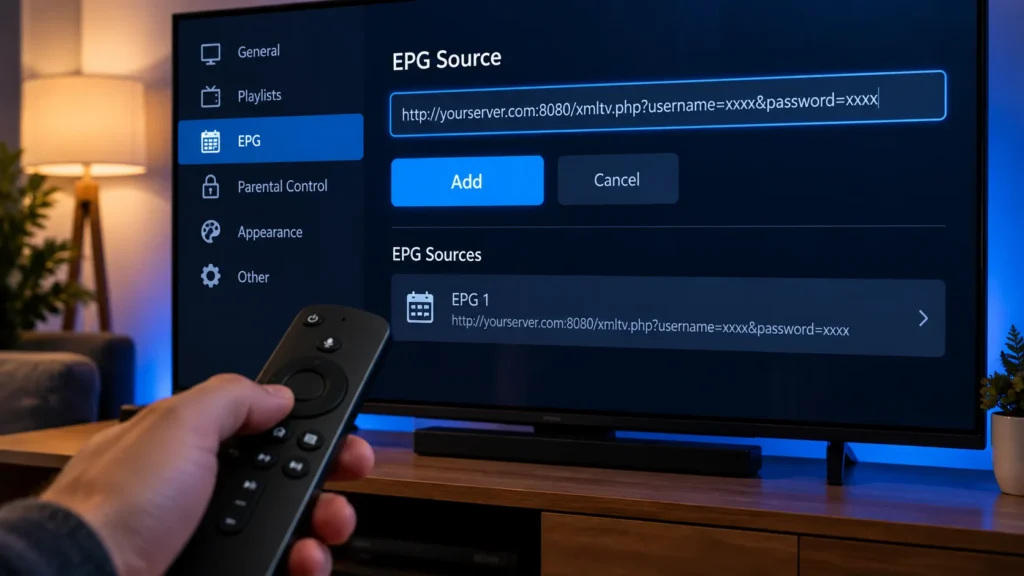
It depends on how you log in. If you’re not sure about the difference, read our guide on M3U vs Xtream Codes.
With Xtream Codes Login
In most players, the TV guide loads automatically. You usually don’t need to add anything. If the guide stays empty, you can still add the EPG link manually (see below).
With an M3U Playlist
Some M3U playlists include the guide link inside them. If your guide stays empty, you need to add EPG to IPTV player settings yourself using a separate EPG URL.
Where to Find Your EPG Link
Your provider sends the EPG link with your login details. It usually looks like this:
http://server.example.com:8080/xmltv.php?username=YOURNAME&password=YOURPASS
It uses the same server, username and password as your subscription. If you can’t find it, message our customer support team and we’ll send it to you.
How to Add EPG to IPTV Player: 4 Simple Steps
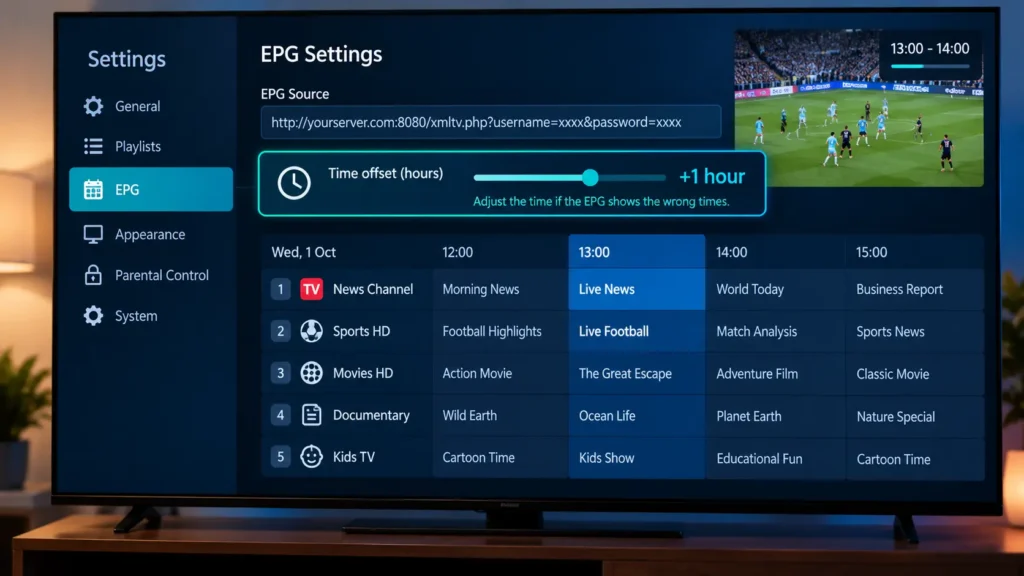
The menu names change a little from app to app, but the steps are always the same.
Step 1: Copy Your EPG Link
Copy the full EPG URL from your provider’s message. Make sure there are no extra spaces at the start or end.
Step 2: Open the EPG Settings in Your Player
Look for Settings, then an option called EPG, TV Guide, EPG Source or Program Guide.
Step 3: Paste the Link and Save
Choose Add EPG Source (or similar), paste your link and save.
Step 4: Refresh the Guide
Tap Update EPG, Refresh or Reload. The first download can take a few minutes for large guides. Then open the TV guide and check your channels.
How to Add EPG in Popular IPTV Players
IPTV Smarters
With an Xtream Codes login, the guide loads by itself. If it’s empty, go back to the home screen and use the option to Install EPG or Refresh EPG, then wait for the download to finish.
TiviMate (Android TV and Firestick)
Open Settings → EPG → Add EPG Source, paste your EPG link and save. Then choose Update EPG. TiviMate is a great choice for TV boxes. See our Firestick setup guide and Android TV setup guide.
GSE Smart IPTV
Open the EPG section from the menu, tap + to add a new source, paste your link and save. Then link it to your playlist if the app asks.
IPTVnator (Windows and Mac)
Open your playlist settings, paste the EPG URL in the EPG field and save. The guide appears next to each channel. Learn more in our guide on setting up IPTV on PC and Mac.
MyIPTV Player (Windows)
Go to Settings, add your EPG link as an EPG source, then select it and refresh.
VLC Media Player
VLC does not support IPTV TV guides. If you want EPG, switch to a dedicated player like IPTVnator, TiviMate or IPTV Smarters.
How to Fix Common EPG Problems
The TV Guide Is Empty
- Check that the EPG link is copied correctly with no extra spaces.
- Make sure your subscription is active.
- Tap Refresh EPG and wait a few minutes.
- Restart the app after the update finishes.
Guide Times Are Wrong
This is usually a time zone issue. Look for EPG Time Shift or Time Offset in your player settings and adjust it by +1 or -1 hour until the times match. Also check that your device’s date, time and time zone are correct.
Some Channels Have No Guide
Not every channel has guide data. Sports events, local channels and special channels sometimes have no schedule. If a popular channel is missing its guide, report it to our support team.
The Guide Shows Old Information
Set your player to update the EPG automatically every 12 or 24 hours, or refresh it manually once a day.
The Guide Loads Very Slowly
Large guides can be heavy for older devices. Reduce the number of guide days in settings (for example, from 7 days to 3 days) to make it faster.
Tips for a Better TV Guide Experience
- Use Xtream Codes when possible, because the guide loads automatically.
- Turn on automatic EPG updates in your player.
- Use the guide together with 7-day catch-up to watch shows you missed.
- Add your favorite channels to Favorites so their guides appear first.
- Keep your player app updated for better guide performance.
Frequently Asked Questions
Is the EPG included in my Marinios IPTV subscription?
Yes. Every plan includes the TV guide and 7-day catch-up where the source provides it. See all plans on our IPTV Plans page.
Why do I need to add EPG to IPTV player apps manually?
Some players and M3U playlists don’t load the guide automatically. Adding the EPG link manually tells the app exactly where to download the schedule.
Can I use an EPG link from another website?
It’s possible, but the channel names often won’t match, so many channels stay empty. It’s best to use the EPG link from your own provider.
How often does the TV guide update?
Most providers update the guide every day. Set your player to refresh it every 12 or 24 hours.
Find more answers on our IPTV FAQ page.
Conclusion: Your Full TV Guide in Minutes
Now you know how to add EPG to IPTV player apps in just 4 simple steps. Copy your EPG link, open the guide settings, paste and save, then refresh. In a few minutes, you’ll see exactly what’s on every channel.
Need a subscription with a full TV guide? Choose your Marinios IPTV plan and our team will help you set it up on WhatsApp.