
Uncategorized
How to Set Up IPTV on iPhone and iPad in 4 Easy Steps (2026 Guide)
How to Set Up IPTV on iPhone and iPad in 4 Easy Steps (2026 Guide)
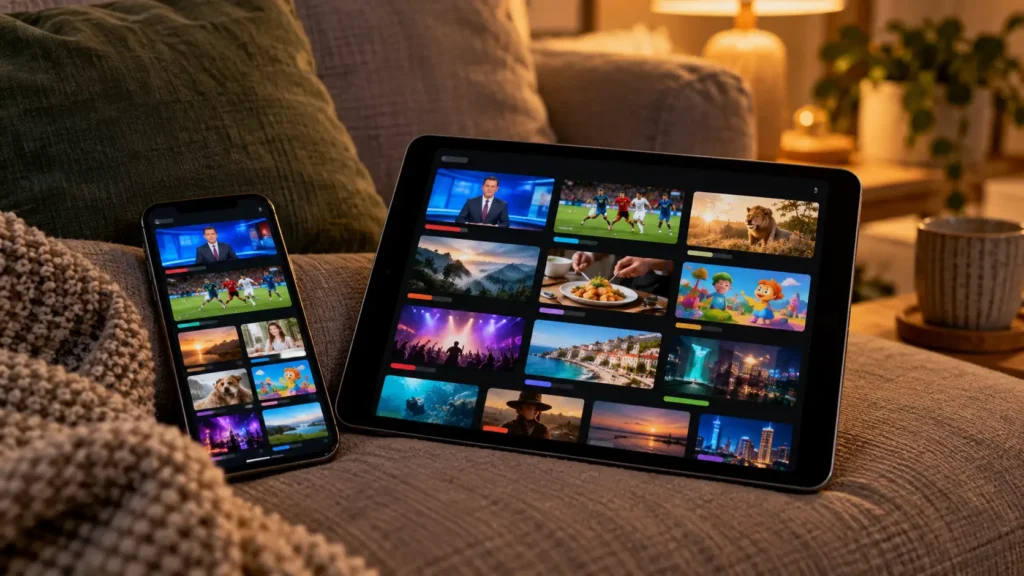
Watching IPTV on iPhone and iPad lets you enjoy live TV, movies and series anywhere: in bed, on the sofa or while traveling. Setup takes only a few minutes, and you don’t need any extra hardware.
In this guide, you will learn which apps to install, how to add your subscription step by step, and how to fix common problems. New to IPTV? Read our IPTV for Beginners guide first.
What You Need to Watch IPTV on iPhone and iPad
1. An Active IPTV Subscription
Your provider sends you an M3U playlist link or an Xtream Codes login (server URL, username and password). You can pick a plan on our IPTV Plans page.
2. A Good Internet Connection
Allow around 8 Mbps for HD and 25 Mbps or more for 4K. Test your speed for free on Speedtest.net. Strong Wi-Fi is best, but 4G and 5G also work well.
3. An IPTV Player App from the App Store
iPhone and iPad use player apps from the Apple App Store. There is no special Marinios app. You simply enter your login details into a compatible player.
Best IPTV Apps for iPhone and iPad
VLC for Mobile
VLC for iOS is free and simple. It opens M3U playlist links quickly, which makes it perfect for testing your subscription. It has no TV guide.
IPTV Smarters Player Lite
A popular player that supports both Xtream Codes logins and M3U links. It shows live TV, movies and series in separate sections with a TV guide.
GSE Smart IPTV
A long-standing iOS player with M3U and Xtream support, a TV guide and favorites. It works on both iPhone and iPad.
How to Set Up IPTV on iPhone and iPad with VLC
Step 1: Install VLC
Open the App Store, search for VLC for Mobile and tap Get.
Step 2: Open the Network Tab
Open VLC and tap the Network tab at the bottom of the screen.
Step 3: Paste Your M3U Link
Tap Open Network Stream, paste the M3U link from your provider, then tap Open Network Stream again.
Step 4: Choose a Channel
Your channel list will load. Tap any channel to start watching.
How to Set Up IPTV on iPhone and iPad with an IPTV Player

Method 1: Using Xtream Codes Login
Step 1: Install the Player
Download IPTV Smarters Player Lite or GSE Smart IPTV from the App Store.
Step 2: Choose Xtream Codes Login
Open the app and choose the option to log in with Xtream Codes API.
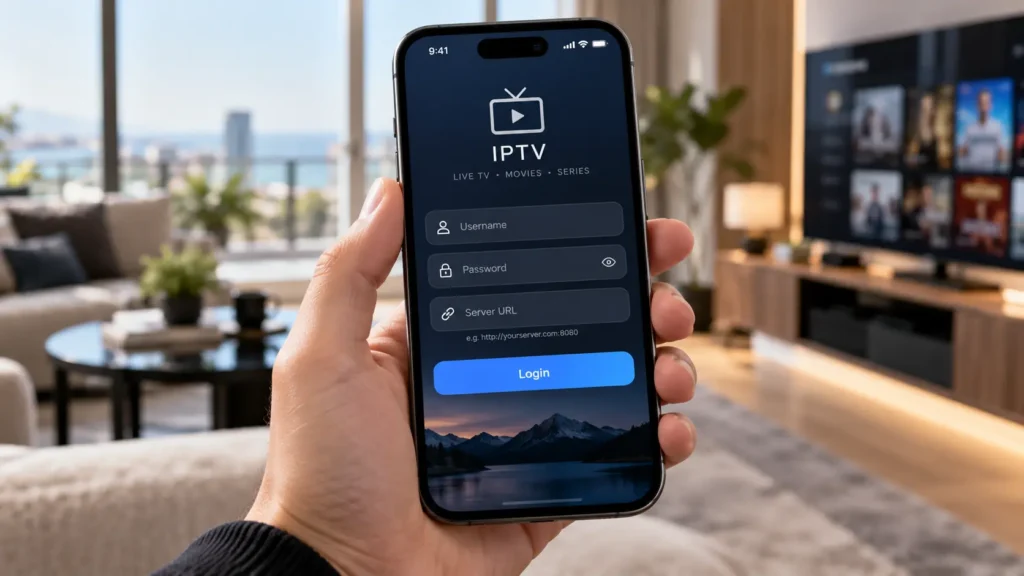
Step 3: Enter Your Details
Type any name for your profile, then enter the username, password and server URL you received. Check carefully for typos and extra spaces.
Step 4: Log In and Watch
Tap Add User or Login. Your live TV, movies, series and TV guide will load in a few moments.
Method 2: Using an M3U Playlist Link
Step 1: Open the Playlist Option
In your player, choose Load Your Playlist or Add Remote Playlist.
Step 2: Paste Your Link
Give the playlist a name, paste your M3U link and save it.
Step 3: Add the TV Guide (Optional)
If you received an EPG link, add it in the player settings so you can see what’s on now and next.
How to Watch IPTV from iPhone and iPad on Your TV
You can send what you’re watching to a bigger screen with AirPlay. Open Control Center, tap Screen Mirroring and choose your Apple TV or AirPlay-compatible Smart TV. Apple explains how here: Use AirPlay to stream video from your iPhone or iPad.
For the best quality on TV, it’s better to install the player directly on the TV. Follow our Apple TV setup guide or Smart TV setup guide.
How to Fix Common IPTV Problems on iPhone and iPad
Streams Keep Buffering
Move closer to your router or switch to the 5 GHz Wi-Fi band. Close other apps that use the internet. If you’re on mobile data, check that your signal is strong.
Login Failed or Playlist Won’t Load
Re-enter your details carefully. Usernames and passwords are case-sensitive, so check capital letters. Make sure your subscription is active.
“Too Many Connections” Error
Each device streaming at the same time counts as one connection. Stop playback on another device, or upgrade to a plan with more connections.
No Sound or Black Screen
Close the app fully and reopen it. If the problem stays, try another channel. If only one channel fails, contact our customer support team.
Tips for the Best IPTV Experience on iOS
- Keep your iPhone or iPad updated to the latest iOS or iPadOS version.
- Add your favorite channels to a Favorites list for quick access.
- Use landscape mode on iPad for a bigger, clearer picture.
- Turn off Low Power Mode while streaming, as it can slow down playback.
- Want to watch on your computer too? Read our guide on how to set up IPTV on PC and Mac.
Frequently Asked Questions
Can I use the same subscription on my iPhone and TV?
Yes. The same login works on all your devices. Only the number of connections in your plan can stream at the same time.
Does IPTV on iPhone and iPad use a lot of mobile data?
Yes, it can. An HD stream can use a few gigabytes per hour, so use Wi-Fi when possible or lower the quality in your player settings.
Is there a Marinios IPTV app on the App Store?
No. You use a third-party player app from the App Store and enter the login details we send you.
Can I watch 4K on iPhone?
Yes, on channels that broadcast in 4K and with a fast connection. Remember that picture quality depends on the source.
Find more answers on our IPTV FAQ page.
Start Watching IPTV on iPhone and iPad Today
Setting up IPTV on iPhone and iPad is quick and easy. Install a player, add your login details, and your favorite live TV, movies and series are always in your pocket.
Need a subscription? Choose your Marinios IPTV plan and our team will guide you through setup on WhatsApp.
One comment